IBM Maximo
We've developed a microservice and set of Nextspace Plugins to help integrate with a Maximo instance.
We currently support retrieval of Asset, Work Order, and Service Request records from a configured Maximo instance. When combined with our plugins, you can visualize the Work Orders and Service Requests related to any rendered assets (Entities) in Navigator scenes.
This experience can be embedded with an iframe into your Maximo installation, or run through Navigator.
Data assumed to exist in both Maximo and Nextspace with a common foreign-key value to link them.
Data assumed to exist in both Maximo and Nextspace with a common foreign-key value to link them.
Records in Maximo or Nextspace can be manually assigned a foreign-key value to link them between the systems.
Work Orders created through Nextspace can be visualized without a corresponding asset record.
Records in Maximo or Nextspace can be manually assigned a foreign-key value to link them between the systems.
Service Requests created through Nextspace can be visualized without a corresponding asset record.
Records in Maximo or Nextspace can be manually assigned a foreign-key value to link them between the systems.
Note that available actions may vary based on your Maximo access token's permissions.
Setup prerequisites
Before you can use the Maximo microservice, you will need to have a Maximo instance running and accessible over the internet.
You will be prompted for a "URL" and "Access Token" when setting up the Data Source in Operator. These values are typically provided by your Maximo administrator. For details within setup instructions.
The Nextspace Microservice will either retrieve full records from Maximo, or pull attribute data based on a user-defined foreign-key.
It is recommended to first ensure there is a set of common asset records between your Maximo instance and Navigator scenes. There must be a common attribute value to tie the Maximo and Nextspace records together.
If you don't have a set of common records, you are able to manually assign the Maximo's record ID in Nextspace to link the records together.If you are making demo data to test the integration, it is highly recommended to create a new site in Maximo to avoid unrelated "BEDFORD" data from being retrieved.
Setup instructions
To get started, create a new "Simple Microservice" Data Source in your Nextspace account through Operator.
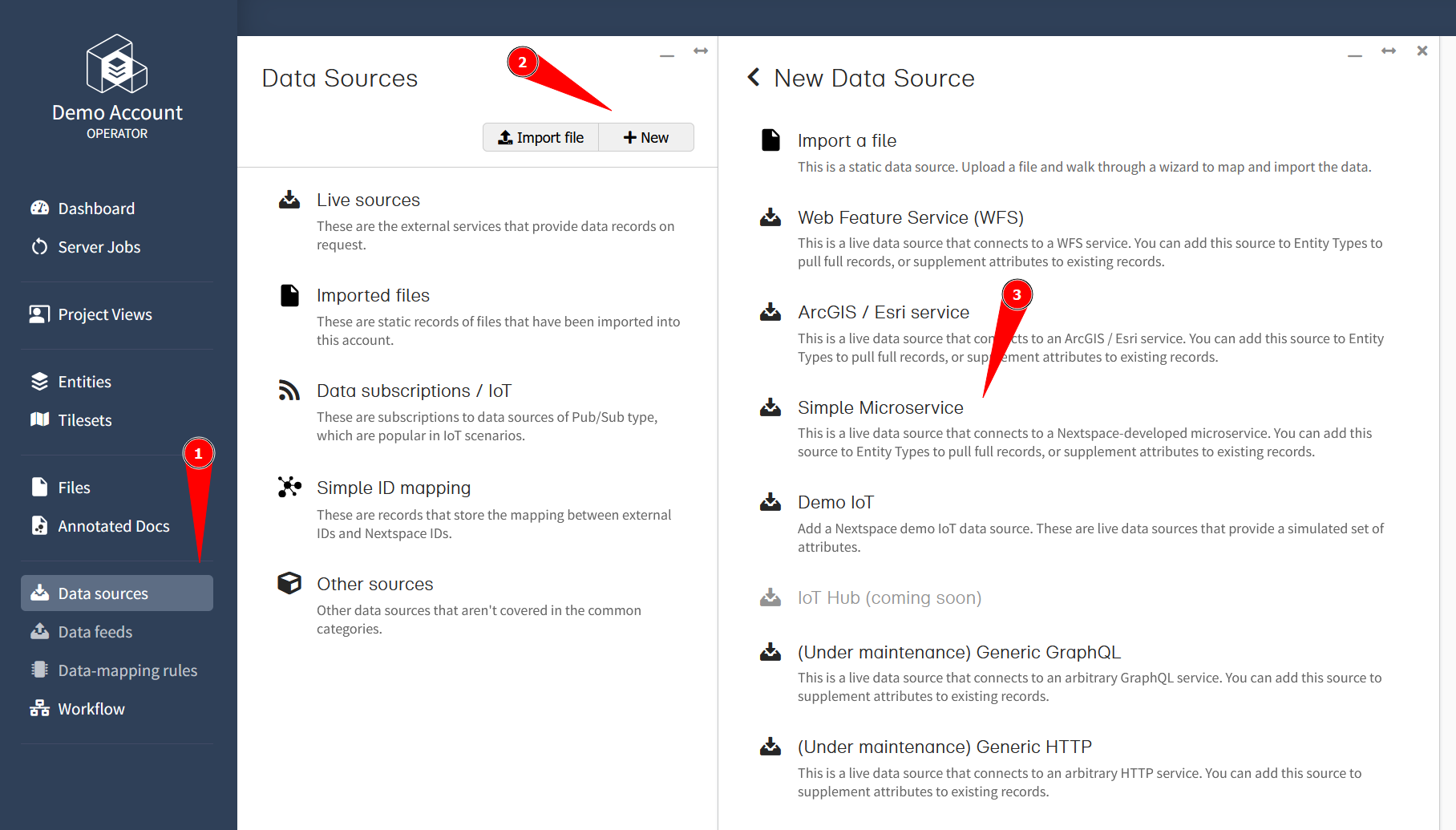
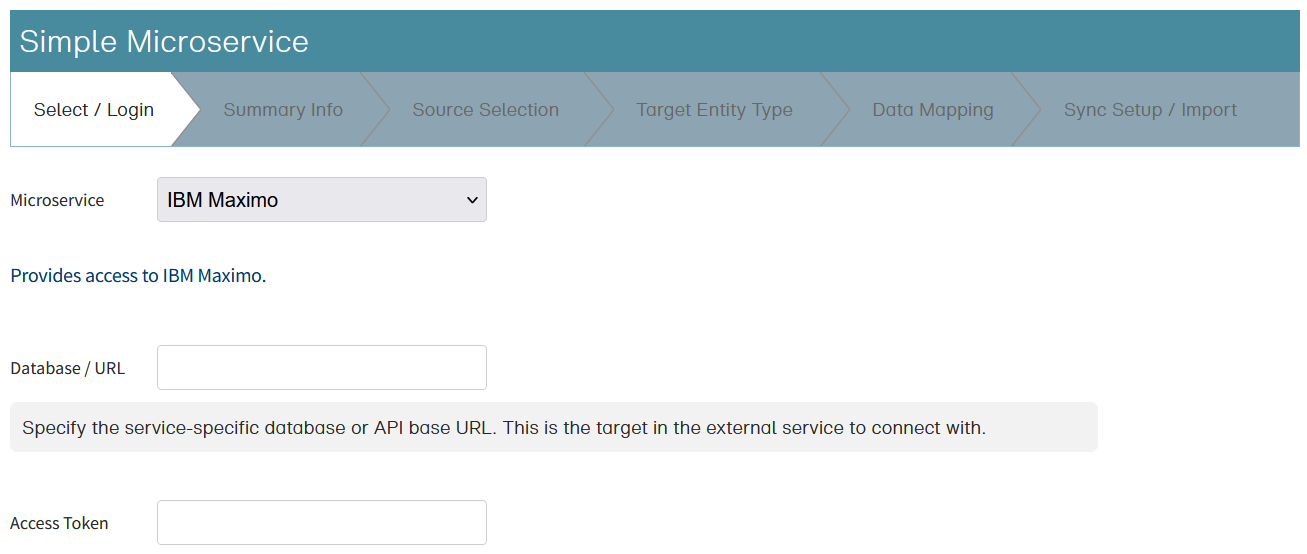
You will need to provide a "Database / URL" and "Access Token" value to proceed.
The URL typically ends with /api/os/.
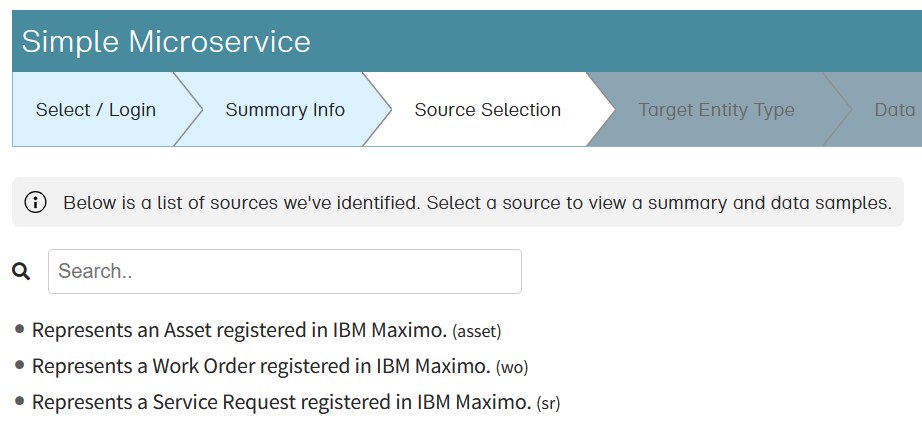
Once you select what data you want to retrieve, you can continue to the individual instructions below for each data type.
Setup instructions: Asset
Assets are typically set up to pull attribute data from Maximo based on a common attribute value. You are supplementing information to existing Nextspace records with this setup.
The setup will ask you what Entity Type to supplement, however you can configure other Entity Types after the setup without repeating the whole process.
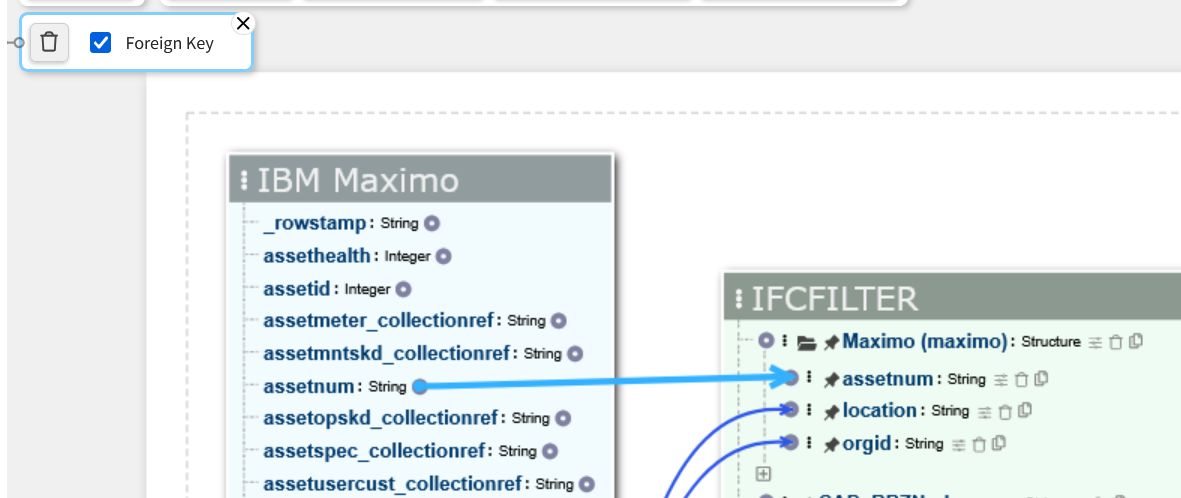
Here is a basic mapping that will retrieve the "location" and "orgid" values from Maximo based on the common "assetnum" attribute.
When there is an "assetnum" value, the other values will attempt to be retreived from Maximo.
It is recommended to use either "assetnum" or "location" as the foreign-key.
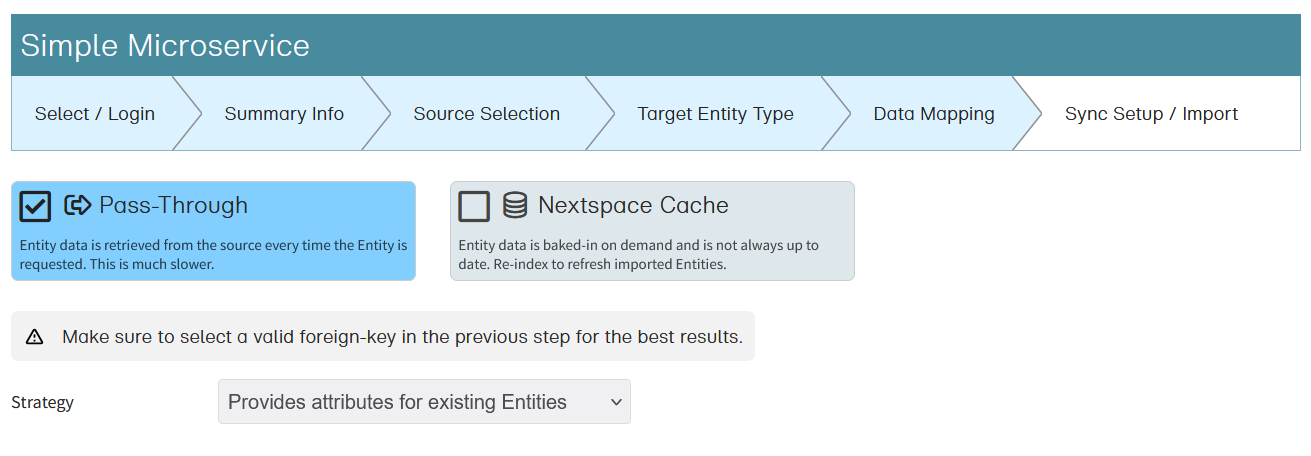
You will want to select a "Pass-Through" strategy with "Provides attributes for existing Entities" for this configuration.
You have now configured this data source. You should see the Maximo attribute values appearing when you view Entity records. To configure another Entity Type, open it from the "Entity ► Entity Types" panel and add the new Data Source to it.
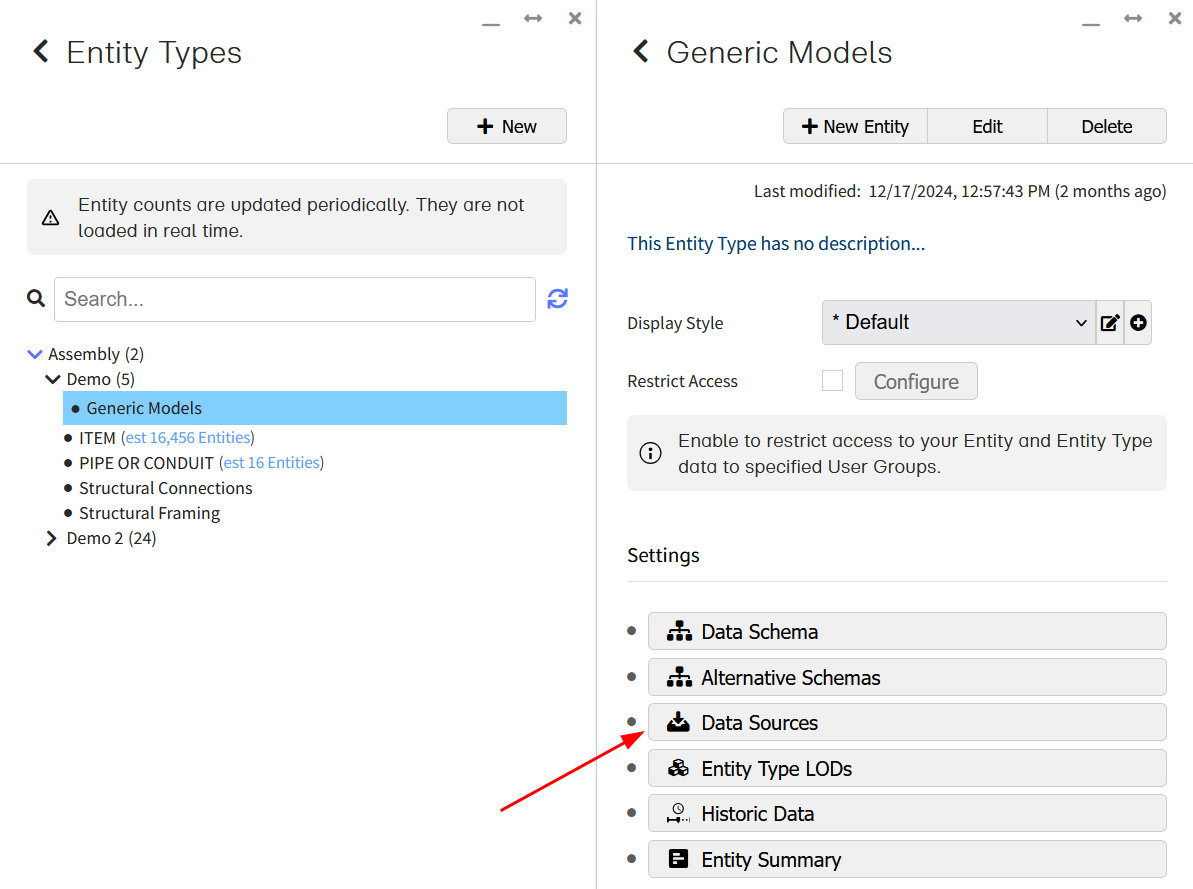
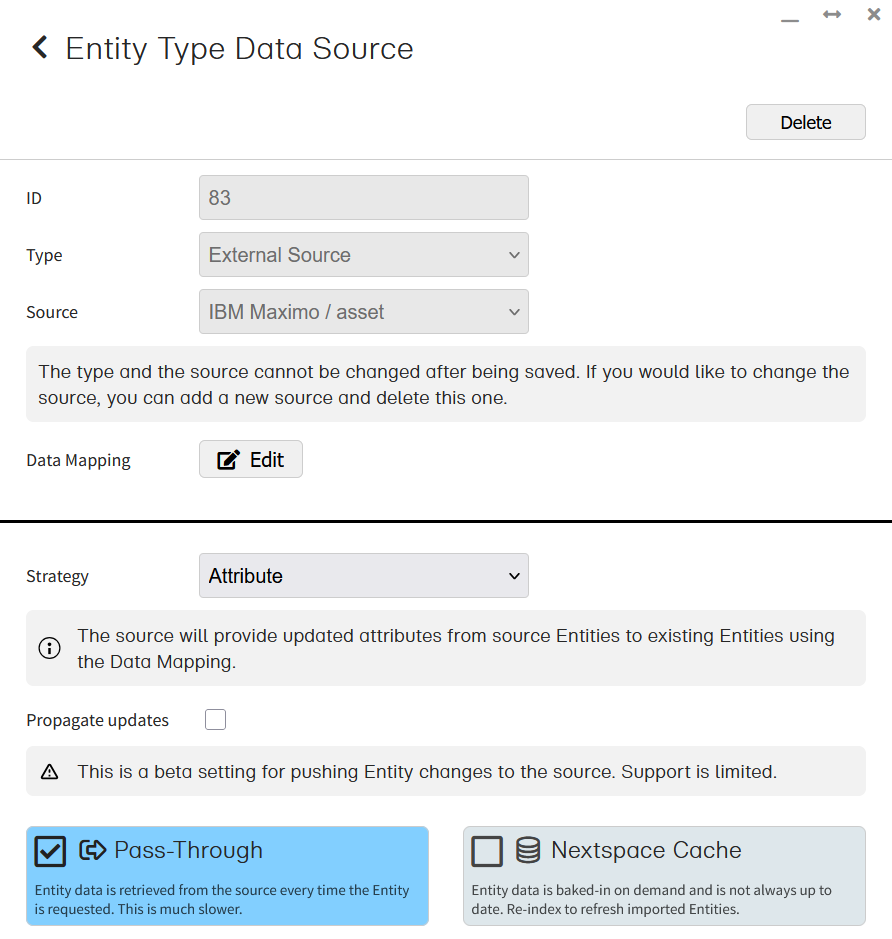
Ensure to select the "Attribute" strategy with "Pass-Through". You will also need to repeat the Data Mapping configuration.
It is recommended to keep the foreign-key attribute consistent between your Entity Types so that the same configuration can be used when utilizing our plugins.
Setup instructions: Work Order / Service Request
The Work Order and Service Request setup is the same so we'll cover both at once.
Unlike the Asset setup, we will be retrieving full records instead of supplementing attributes to existing Nextspace data. This setup will ensure that the first page of Entities retrieved will be the latest Work Order and Service Request records from Maximo.
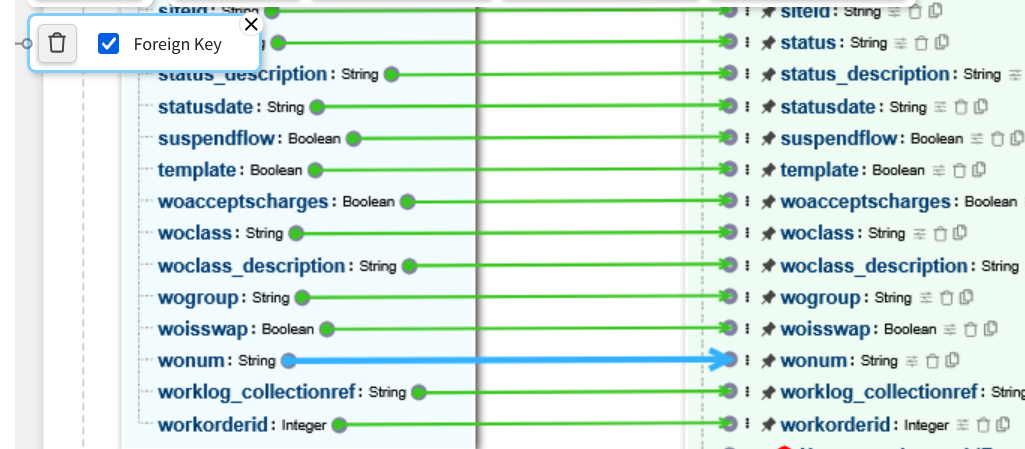
Unlike the asset setup, it is recommended to create a new Entity Type so you can copy over all the available attributes from Maximo.
The setup may suggest a foreign-key so ensure to double-check it. For Work Orders we recommend the "wonum" attribute, and for Service Requests we recommend the "ticketid" attribute.
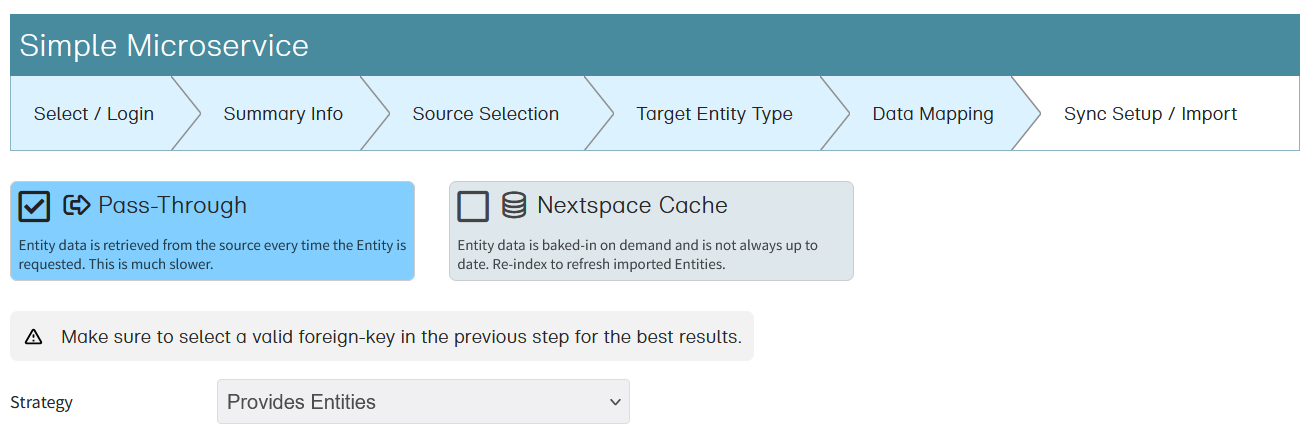
For this setup, you will want to select "Pass-Through" with "Provides Entities" to ensure the latest full records are always retrieved.
Propagate updates
If your access key has the permission to create/update records in Maximo, then you can enable the "Propagate updates" feature in the Entity Type Data Source settings.
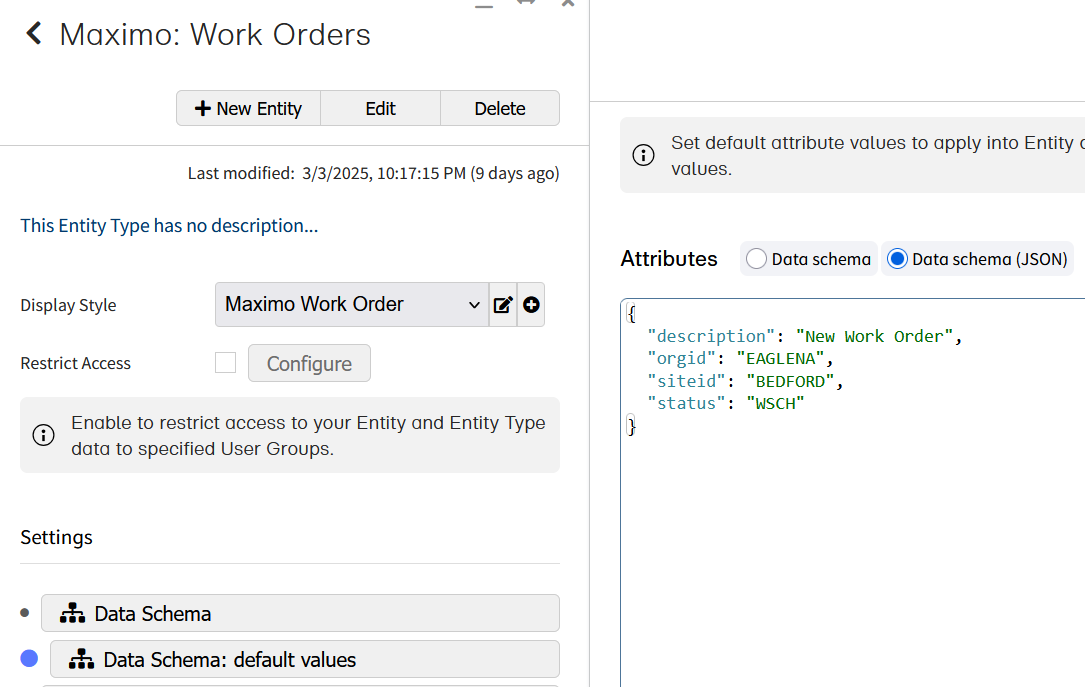
Certain records in Maximo will require a few default values, it is recommended to use Entity Type default values to set these. This is typically the orgid, siteid, and status (for Work Orders). You can also set a description so your Work Orders don't have empty titles.
With this setup, you can create Entity records in Navigator or Operator and corresponding ones will be made in Maximo. Edits will attempt to propagate to the external system (such as changes to the description).
Plugins
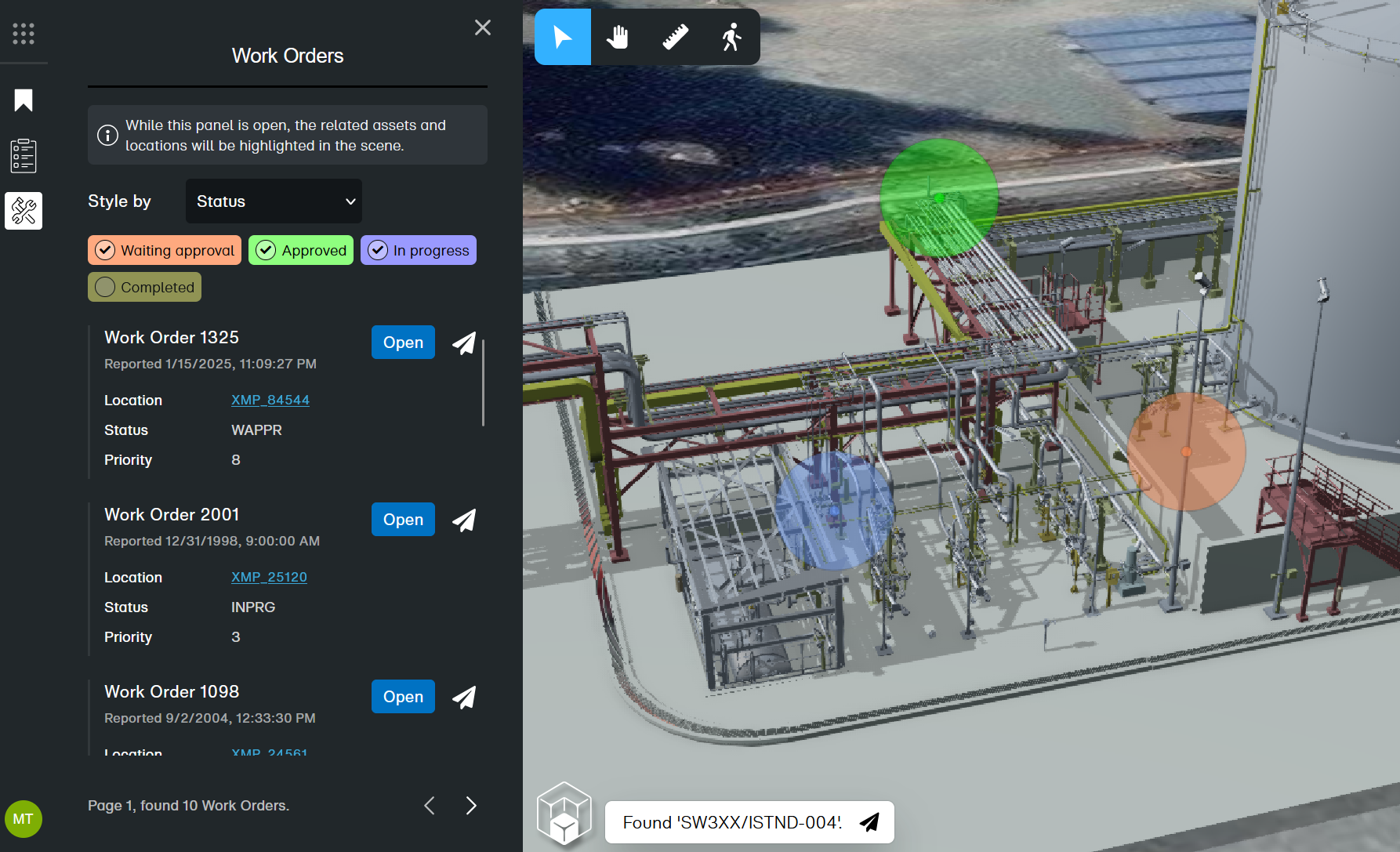
To now best utilize your setup, we recommend reaching out about our Maximo plugins. These are installed into your Nextspace account.
We provide three plugins:
- Maximo Work Orders - List recent Work Orders and visualize them in Navigator scenes.
- Maximo Service Requests - List recent Service Requests and visualize them in Navigator scenes.
- Maximo Asset - Visualize Asset data related to the selected Entity.
Note that these plugins are currently tailored to assembly/BIM data, however they can be tailored for general use (GIS, etc).
For best utilization, we recommend working to embed our Navigator and plugins into your Maximo installation as an iframe.
See the Embed Quick Start for more information on how to embed Navigator.
Buttons in the plugins will send window messages for your iframe logic to handle. For example to open specific records in Maximo.
To start handling these actions once you retrieve the plugins, listen to window post-messages and see how they are structured.
Plugin setup
Once you retrieve the plugins, they will require configuration settings to properly understand your data structure.
These settings can be configured within the selected plugin's details in Operator.
The "Maximo Asset Details" plugin requires these settings:
The "Maximo Service Requests" plugin requires these settings:
The "Maximo Asset Details" plugin requires these settings: